You’d almost think meeting rooms had suddenly become obsolete based on how little guidance there is for choosing the right platform. We’ve obviously published quite a lot of content on workplace management software, booking systems, and Microsoft Teams versus Cisco Webex Rooms, but we know a lot of buyers are still struggling to find a comprehensive purchasing playbook.
So, hopefully, here it is. Before we get into the advice, it’s worth defining a meeting room platform, since we’re not talking about device bundles here; we’re talking about the software that keeps meetings running. Platforms give you an integrated suite of services to address meeting space needs‚ including scheduling and other calendar-related services as well as analytics.
They’re not all like-for-like, obviously, especially in terms of compatibility options, integrated features, and overall pricing, which is exactly why a guide like this should be helpful.
Key Takeaways:
-
Start with the room type: It might go without saying, but huddle spaces and boardrooms have very different requirements for audio, video, accessibility, and AI.
-
Decide how your meetings should run: Compare native room experiences to BYOM options before you commit to buying equipment.
-
Demand some real proof: Test everything from how external invitations work to the content sharing process, and hybrid meeting equity for remote users.
-
Price everything: Get the full meeting room TCO: that means software, updates, support, and the cost of changing platforms if you need to.
What Types of Meeting Rooms Does Your Business Need?
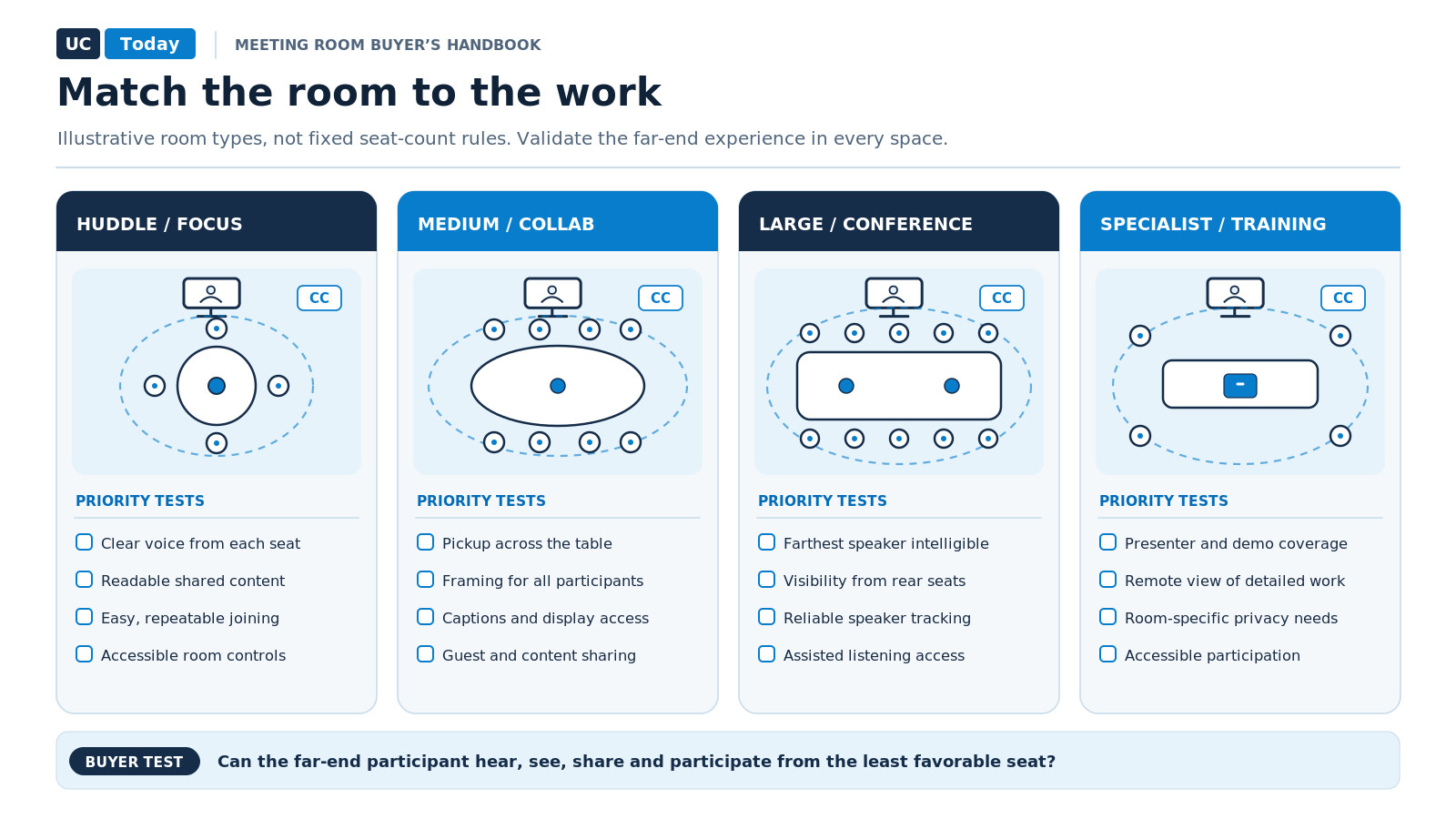
First things first: before you can manage your meeting rooms, you need to know what they’re for. Design every room to huddle-space guidelines, and you’ll obviously have a problem. One of the common mistakes companies make is just defining the room based on the seating plan, without actually looking at how it’s used.
A conference room with capacity for twelve people might be used by one person every other week for videoconferencing; that changes the platform licenses and devices you need.
We recently cited a study by Occuspace that found that one or two people used conference rooms during 78% of the time when they were occupied․ One or two people used conference rooms designed to hold 13 or more people 62% of the time․ Obviously, size only tells you so much.
Which Room Types and Meeting Activities Should You Support?
It varies. Some companies might want to invest in every type of smart workspace they can physically fit into their available space; others just need a couple of huddle spaces to keep teams aligned. If you’re not sure where to start, get a good look at how your employees currently use meeting spaces, then compare that to the common room types:
|
Room type
|
Priority requirements
|
Question to test
|
|
Huddle/focus
|
Quick meeting join features, clear audio, easy sharing
|
Do you really need a comprehensive room kit?
|
|
Medium collaboration
|
Smart video tools (like framing), good microphone coverage, and accessible controls
|
Can everyone participate equally in the meeting?
|
|
Large conference
|
Stronger audio capabilities, transcription, and excellent camera features
|
Do people at the back of the room still get seen or heard?
|
|
Specialist/training
|
Task-specific content, privacy, assistive needs
|
Do you need something specific, like stronger access controls?
|
You may well change your mind on what you need once you test them. The specialist training room for twenty can turn out to host four people in person, with everyone else on video.
What Should Your Meeting Room Audit Include?
The easy answer: more than just lists of room sizes, although obviously, that does help you get a good idea for what fits the space, and how many licenses you need.
Take note of each room’s intended purpose and how it’s actually used (especially if those things tend to differ), the platform mix your teams usually prefer (Cisco, Zoom, Microsoft, etc.), and how often internal staff and external guests are going to meet there.
Also get an idea of any network or power constraints you’re going to face, existing equipment available that you can reuse, acoustic quality, and accessibility options.
Now the trickier part of any meeting room platform buyer guide: should you standardize the experience for everyone, or give participants more freedom?
It’s a tougher question than most companies think. Replacing every laptop-driven meeting with a dedicated system like Zoom Rooms is an expensive way to handle a small number of calls, and a lack of interoperability makes setup harder from one meeting to the next. Yet standardizing certain things helps, particularly for mostly internal meetings where everyone already uses the same platform.
When Should You Choose Native Rooms, BYOM, or a Mixed Approach?
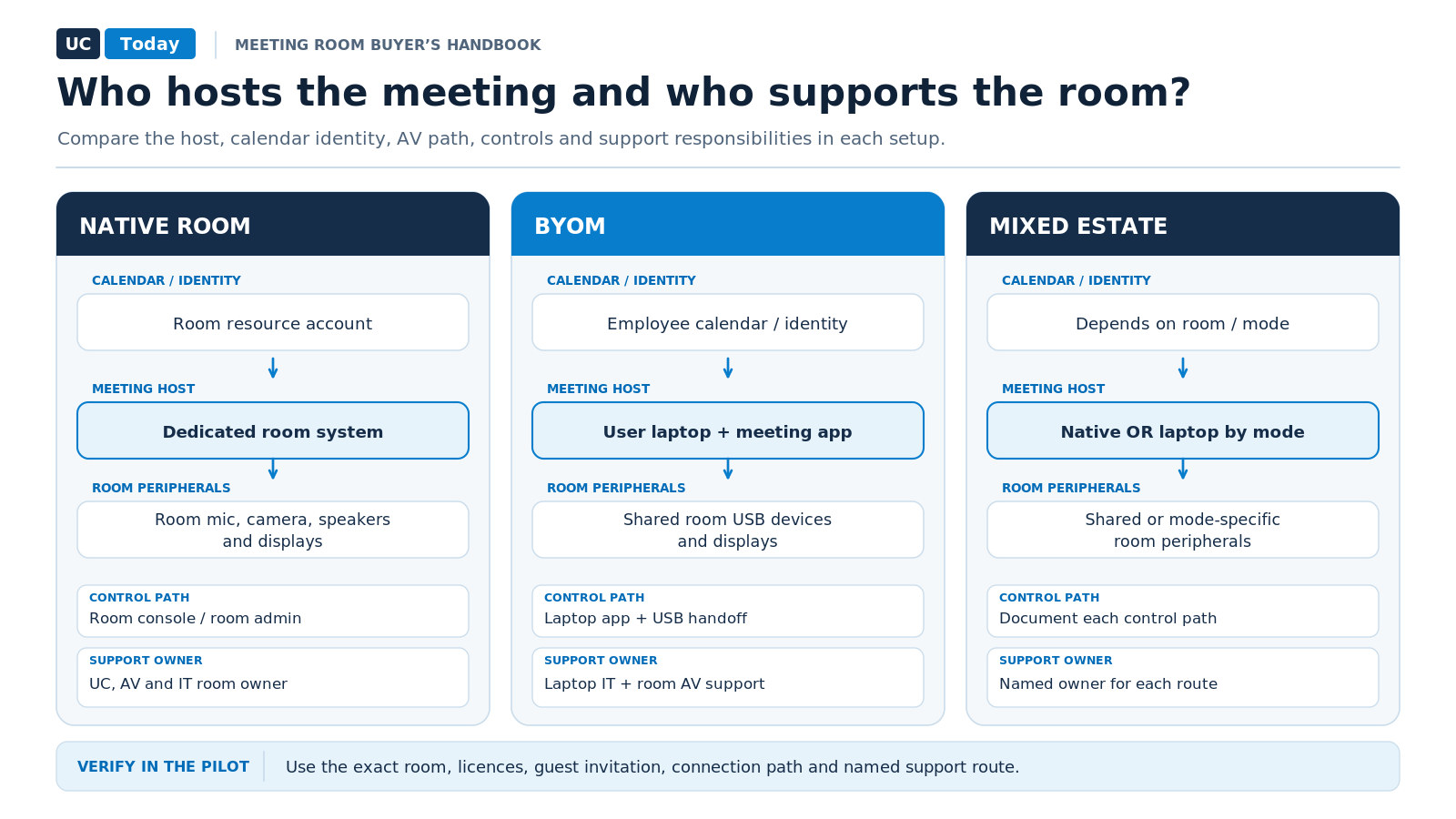
Options include BYOD and BYOM configurations‚ as well as purpose-built native “Rooms”. With BYOD, participants bring in their own device, usually to share content on a screen, although the room platform typically stays the same as it is usually. With BYOM, someone uses their laptop to host the meeting using the conference room’s existing microphone, cameras, speakers, and displays, and the user can choose which meeting platform to work from.
With a purpose-built or “native” room, you’re running dedicated software for everything from booking to video conferencing designed for that specific space.
Every option tends to give you a fair bit of wiggle room these days,
|
Buying factor
|
Native room
|
BYOM/BYOD
|
Mixed approach
|
|
Best fit
|
Regular meetings on a specific platform
|
Guest-heavy meetings with people who use different platforms or devices
|
Different needs by room or site
|
|
Joining
|
Usually one-touch join
|
User laptop and meeting app
|
Depends on configured mode
|
|
Strength
|
Standard repeatable experience
|
Users can customize their experience
|
Targeted flexibility
|
|
Weak point
|
Licensing and cross-platform gaps
|
USB, driver, cable, or laptop faults
|
Support complexity
|
|
Management
|
Room administration service
|
Peripheral and laptop support
|
Named owners for both
|
|
Guest invitations
|
Resource account and guest-join policy
|
User’s own calendar and app
|
Test each configured path
|
How Do Teams Rooms, Zoom Rooms, Webex, and Google Meet Hardware Compare?
Most platforms have pretty similar functionality right now, and they’re also mostly device-agnostic. Nobody’s forcing Teams Rooms users to stick with Microsoft peripherals. Some companies, like Cisco, are even giving people the freedom to add in their own AI through MCP connections.
Kevin Kieller, the co-founder and lead UC&C strategist at enableUC, told us:
“We might be going into our favorite AI assistant, let’s say Claude, using MCP servers. We may be having more of the interaction via voice.”
For the most part, companies still tend to choose a platform based on the tools they already use. If you’re heavily invested in Microsoft 365, Microsoft Teams Rooms seems like the obvious pick; but there are definitely still things to verify even if the choice seems clear.
|
Platform
|
Reason to shortlist
|
What to verify before signing
|
|
Microsoft Teams Rooms
|
Strong candidate when Teams and Microsoft 365 run everyday meetings and scheduling.
|
Basic vs. Pro room entitlements; Windows vs. Android features; certified devices; the Pro Management portal and external meeting routes.
|
|
Zoom Rooms
|
Strong candidate when Zoom already owns the meeting and room-calendar workflow.
|
Per-room licensing, Zoom Admin controls, supported devices, calendar setup, guest joining, and the difference between native Zoom Rooms and Zoom for Cisco Rooms.
|
|
Cisco Webex / RoomOS
|
Worth comparing where Cisco devices and Control Hub already form part of the room estate.
|
Webex experience, supported Teams/Zoom/Meet joining paths, RoomOS support, certifications, and who owns troubleshooting across platforms.
|
|
Google Meet hardware
|
Worth comparing when Google Workspace and Calendar govern employees and room resources.
|
Google Admin controls, calendar resources, approved devices, and feature limits when joining Teams, Zoom, or Webex meetings.
|
Also, before you pick anything, do your research. There are lots of reviews out there that can help you, but when feature lists change so quickly, it’s easy to end up with a platform that’s not quite the same as the one you thought you were getting.
Think about how important it really is to standardize everything on a single platform, too. Sometimes there’s an obvious reason, like the one PepsiCo gave when we spoke to the VP of Global Workplace Services, Ashok Paranjothi, about the team’s decision to move 3,300 video rooms to Teams Rooms:
“We knew that if we didn’t standardize on a collaboration platform with powerful AI features, we’d lose ground in workplace AI.”
Other times, there are situations where a more flexible approach really makes more sense. If you’re regularly hosting guests and external participants in meetings, for instance, you can’t always guarantee they’ll want to use your preferred platform.
Some “Rooms” solutions do support attendees using other options, of course, like Cisco letting people join through Zoom, but it’s worth remembering that those attendees won’t always get the same experience as the people using your native tool.
How Do You Test Meeting Room Audio, Video, and Accessibility Before Buying?
No matter what kind of new technology you’re investing in, the same advice tends to apply: don’t rely on the demo exclusively to make your decision; it’ll always look great.
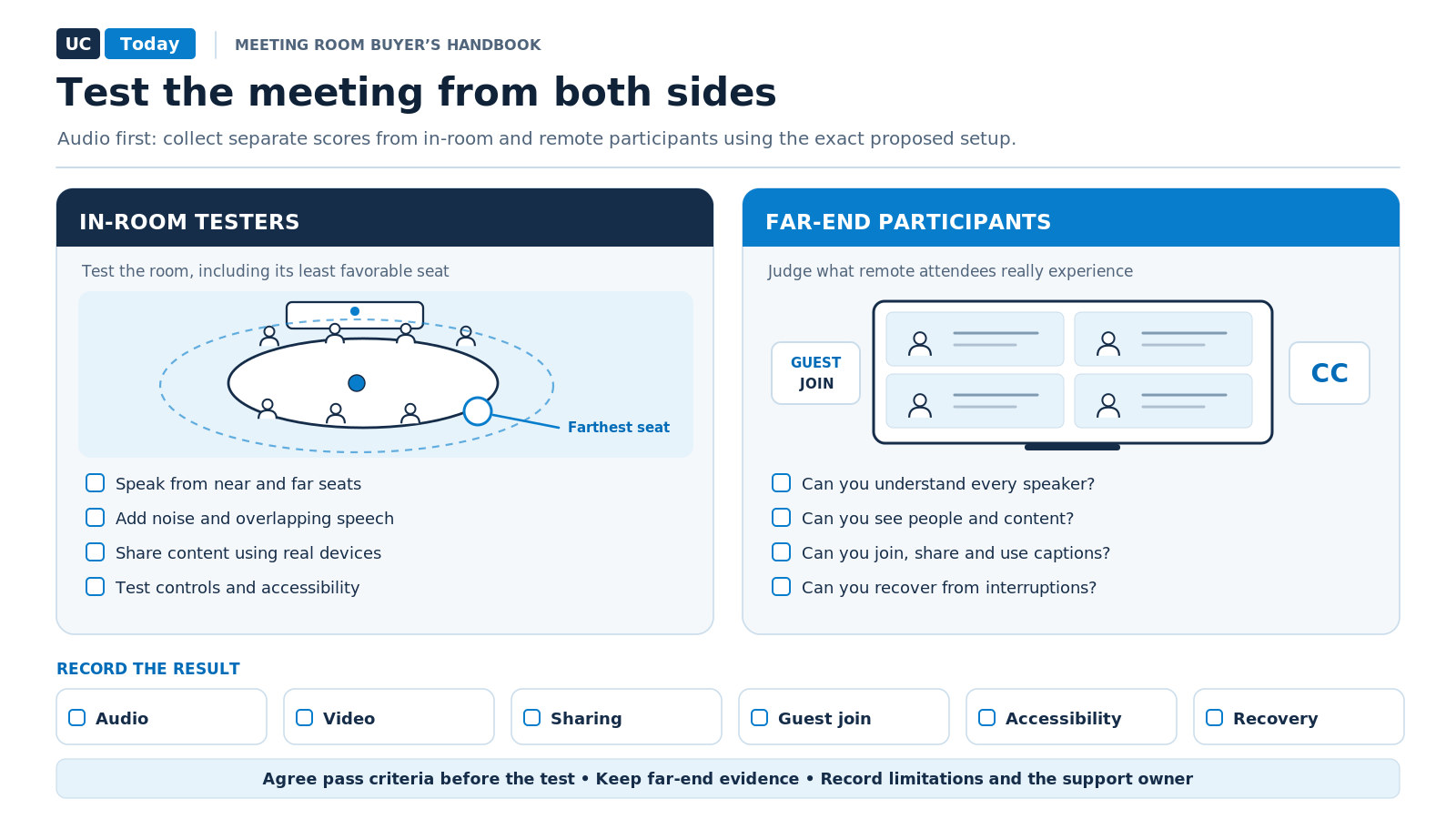
With audio, video, and accessibility, you need a real test with people who can actually tell you whether meeting equity is holding up. It’s generally a good idea to start with intelligibility, particularly from an AV perspective. For workplace audio, remember that expensive beamforming microphones and noise suppression audio can do a lot, but they won’t help poor coverage much.
For the cameras, check things like intelligent framing to see whether it can still pick up quieter speakers, and whether it can properly capture screens and other information for remote users.
When you get to accessibility, don’t assume that AI in meeting rooms and software will handle everything perfectly. Check whether the intelligent translations make sense, if the captions work with different accents, and whether someone can adjust the controls for their specific needs.
AMD’s Justin Watts offered a pretty solid starting point when we interviewed him:
“You have to focus on the furthest person in the room. Everyone has to have that meeting equity to participate.”
Which Meeting Room Tests Should Vendors Pass?
|
Test
|
Live scenario
|
Evidence of a pass
|
|
Audio quality
|
Get speakers talking from different seats, in different locations, with background noise and overlapping conversations.
|
Everyone, including remote attendees, can understand each other perfectly.
|
|
Camera framing
|
See if everyone is captured properly (even people in seats further away), and track what happens when people move around.
|
Everyone stays visible, with no distracting or weird camera moments.
|
|
Content sharing
|
Get both an internal presenter and an external guest to share their screen, some files, or anything else the group might need.
|
The content transfers well without any complicated workarounds or lost connections
|
|
Guest joining
|
Join Teams, Zoom, Webex, and Google Meet using genuine external invitations.
|
Invitations appear correctly, meetings connect, and required controls work.
|
|
Cross-platform features
|
Test captions, recording, whiteboarding, and screen sharing on third-party platforms.
|
Must-have features work as intended, with limitations written down.
|
|
Accessibility
|
Employees test captions, room controls, and screen visibility against their accessibility needs.
|
Agreed accessibility requirements are met and signed off by representative users.
|
|
Low-bandwidth performance
|
A remote attendee joins with limited bandwidth and experiences a brief connection interruption.
|
The meeting remains usable under agreed conditions, with documented recovery behavior.
|
|
Failure recovery
|
Disconnect a microphone or camera and simulate a failed meeting launch.
|
IT identifies the fault, restores service within the agreed time, and confirms support ownership.
|
Always use the exact configuration and setup the vendor wants to sell, with people outside of the room scoring it separately, and agree on the pass conditions before the demonstration.
Can One Meeting Room Support Teams, Zoom, Webex, Google Meet, and AI Features?
It should, if set up properly, but be careful what “support” means. Enterprise meeting room interoperability needs three separate answers: can the room join, which features work, and who controls the data afterward? As Kevin Kieller told us:
“All of us have meetings on every different platform every week, and we have business data and knowledge in a whole host of platforms.”
If that’s your situation, test the guest workflows before investing in anything.
Does Cross-Platform Joining Mean Full Feature Compatibility?
That depends on what you’re using. Microsoft’s current documentation from Teams Rooms, for example, separates the experience for WebRTC-based Direct Guest Join from SIP-based cross-platform joining. You can send HDMI content through SIP, for instance, but you can’t do it with direct guest join, and transcript views aren’t available on either.
Google has a similar limitation when a Zoom Room joins Meet. Features like closed captions, dual-screen support, and chat, as well as activities like recording, aren’t available to the joining device. The host can still record, of course.
If most of the tools you use in meetings are pretty basic, you shouldn’t have too much of a problem, but things can get complicated pretty fast. Jordan Owens, the CTO of Pexip for the Americas, recently told us:
“Where native interop starts to struggle is where I have more advanced requirements and more advanced features I need to take advantage of.”
For each room configuration, record the host platform, join route, firmware, licenses, and tested outcome for sharing, captions, recording, whiteboarding, and administrative controls.
Which AI Meeting Features and Data Controls Must You Verify?
Yes, AI in the meeting room needs testing too, now that it’s everywhere. Separate intelligent framing from AI transcripts, and both from assistants that can send messages or start actions.
Make sure you know who (and what) can authorize a recording, whose permissions control the notes and where they get stored, and how guests are notified when AI’s in the room. Also make sure you have a clear view of whether your vendor’s using meeting content or any voice data for model training; you can get into some sticky compliance situations if you don’t.
Even if a vendor promises their AI is “safe”, you might still need to make some of your own governance calls, especially when new potential risks come to light.
The University of Washington, for instance, decided it needed to block Read AI access for its Zoom and Teams Rooms in 2025, because summaries were being shared externally, and unexpected attendees were showing up.
It’s hard to get a very clear estimate, because there are so many factors influencing your meeting room platform TCO: room licenses, installation, acoustic work and cabling, engineer support, training, maybe a few extra AI features.
To begin with, look at a few key cost lines:
|
Cost line
|
Include in the buyer’s worksheet
|
|
Deployment
|
Hardware, mounts, cabling, power, acoustics, configuration
|
|
Software/network
|
Room licenses, interoperability services, management, bandwidth
|
|
Operations
|
Monitoring, updates, support labor, travel, repairs, spares
|
|
Change/exit
|
Certifications, migration, retraining, disposal, replacements
|
It might seem like obvious advice, but when you’re comparing platforms, use one currency, one time horizon, and the same overall requirements for every estimate. Also, as usual, remember to separate one-off costs from recurring charges.
Keep in mind, a cheaper deal can sometimes include hidden costs. You might get a lower cost for your room license, for instance, but you end up paying extra because that subscription doesn’t include any help with implementation or maintenance.
You could also miss out on some features you really need; for instance, Microsoft’s Basic Rooms subscription misses things like advanced remote configuration and device analytics.
Who Owns Monitoring, Security, and Support?
Find out early. Get your vendor to demonstrate what meeting room management is going to look like by showing you what happens when a camera fails, or a patch doesn’t install.
Define who’s going to be responsible for monitoring room health, dispatching local technicians, supplying spares if devices are included in the bundle, testing updates, and tracking configuration records. Some companies can promise 24/7 support while still leaving a lot on your shoulders.
Our Kinly deployment analysis actually gives beginners a pretty good initial checklist for things like enrollment, exportable asset records, recovery tests, and named supporters, but make sure you’re not overlooking security. Jennifer Williams of Secarma warned us:
“A meeting room device can still work perfectly while being a security problem.”
Will the Equipment Survive a Platform Change?
This is another thing to figure out if you’re thinking about switching to a new meeting room platform, or even setting one up for the first time, if you already have equipment in the office. A lot of vendors make sure their platforms are device agnostic, as we mentioned above, but it’s worth double-checking, especially if you know some of your equipment is a bit older.
If a vendor suggests some of your equipment might need changing, ask what they can help with, and how much a reconfiguration costs before you agree to anything.
How Do You Pilot, Standardize, and Roll Out Meeting Rooms Across Multiple Sites?
Ideally, avoid running a single test in the nicest room you have at headquarters; you’ll get a much better idea of how well everything works if you see how the platform holds up in the rooms that have unreliable connectivity or outdated devices, too.
Before you go through the pilot, decide what you’re going to be looking for, such as overall ease of use, excellent intelligibility, or easy fixes when something (inevitably) goes wrong.
This is also the time when you’ll need to decide what you’re actually going to standardize across sites. You don’t necessarily need to force everyone to use the exact same devices and platform, but you should know what the standard setup generally looks like for each type of meeting room, how you’re going to handle security and governance, and where everything will be managed.
You might also set up some rules for things like sending guests invitations, giving them specific permissions, and organizing calendar bookings.
Once you’re comfortable, deploy the whole platform in one environment first, and get some honest feedback from early testers (both remote and internal participants if possible). After that, you can start applying the same platform and general setup to other sites, keeping in mind that there may well be offices and environments that need exceptions.
Keep a close eye on each deployment too; meeting room management tools exist for a reason, and just because a platform seems to work perfectly for everyone for the first few months doesn’t mean you won’t stumble into a few issues down the line.
It really comes down to you. Most companies generally start by checking out the platform connected to the system their employees already use for collaboration, like Microsoft Teams, Zoom, or Webex, but that doesn’t have to be the right call for every organization.
Run a through different platforms through the same tests if you can, have real conversations with the vendors about the things that might be worrying you, like what the external guest experience will be like, and whether you’ll have to pay extra for maintenance.
Once you’ve made your choice, make sure you check out our other guides for more tips on how to improve tech adoption, manage your meeting rooms, and keep hybrid work working properly.
FAQs
A lot of platforms can support different collaboration tools these days, but they don’t always give external participants using those tools the same experience. Make sure you check what guests can actually do, and whether things like BYOM and BYOD are supported.
Can Teams Rooms and Zoom Rooms Join Meetings Hosted Elsewhere?
Yes, as long as they’re configured to do so, but guest-join routes can vary based on the software version, platform, devices being used, and even the license. If you know you’re going to be hosting Zoom and Teams users, check what the experience will look like first.
Is BYOM or BYOD Cheaper Than a Dedicated Meeting Room?
That depends, it can cost a lot less to set up a meeting room initially if you’re letting everyone use their preferred devices and meeting platforms. Sometimes, though, a native meeting room can save you money on things like maintenance issues, security problems, and inconsistencies.
Do AI Meeting Features Work During Third-Party Meetings?
It depends on the platform you’re using and the feature you actually want to use. Some platforms might restrict access to transcripts, summaries or even translation options for people not using the native system, so it’s worth double-checking.
How Do You Make Meeting Rooms Accessible and Inclusive?
Speak to the employees that have specific needs and ask them to check the platform’s audio features, room controls, video capabilities, and captions. They can probably give you some good feedback about what needs to change before a full deployment.