It’s a little odd how easy it is for companies to underestimate the importance of equipping their teams with the right devices. Leaders spend a fortune on intuitive new software and AI, then assume their employees will somehow manage to stay productive with an outdated laptop and a headset.
Gartner even revealed that worldwide PC shipments had fallen around 22.4% year over year in Q3 of 2026; mostly because of memory and storage costs ramping up. Unfortunately, as desperate as companies might be to keep costs low, leaving employees without the hardware they need to operate (either in the office or outside of it) isn’t really an option.
Fortunately, we’re here to help you figure out what you really need to empower your team and give you the tips and guidance that should help you make the most of your entire device strategy for the year ahead.
Key Takeaways:
-
Audit the work before you buy anything: Match every laptop, personal device, camera, and headset to the tasks and locations of your employees.
-
Test everything: Even the best devices can have issues; run through a full testing process with every device you buy, and plan to continuously monitor performance.
-
Standardize carefully: Decide exactly what needs to be the same for every one of your employees, without locking team members into options that don’t work for them.
-
Manage the whole lifecycle: Regularly review the performance of each device, and decide what you’re going to do when it’s time for a refresh.
Which Workplace Devices Do Your Employees Actually Need?
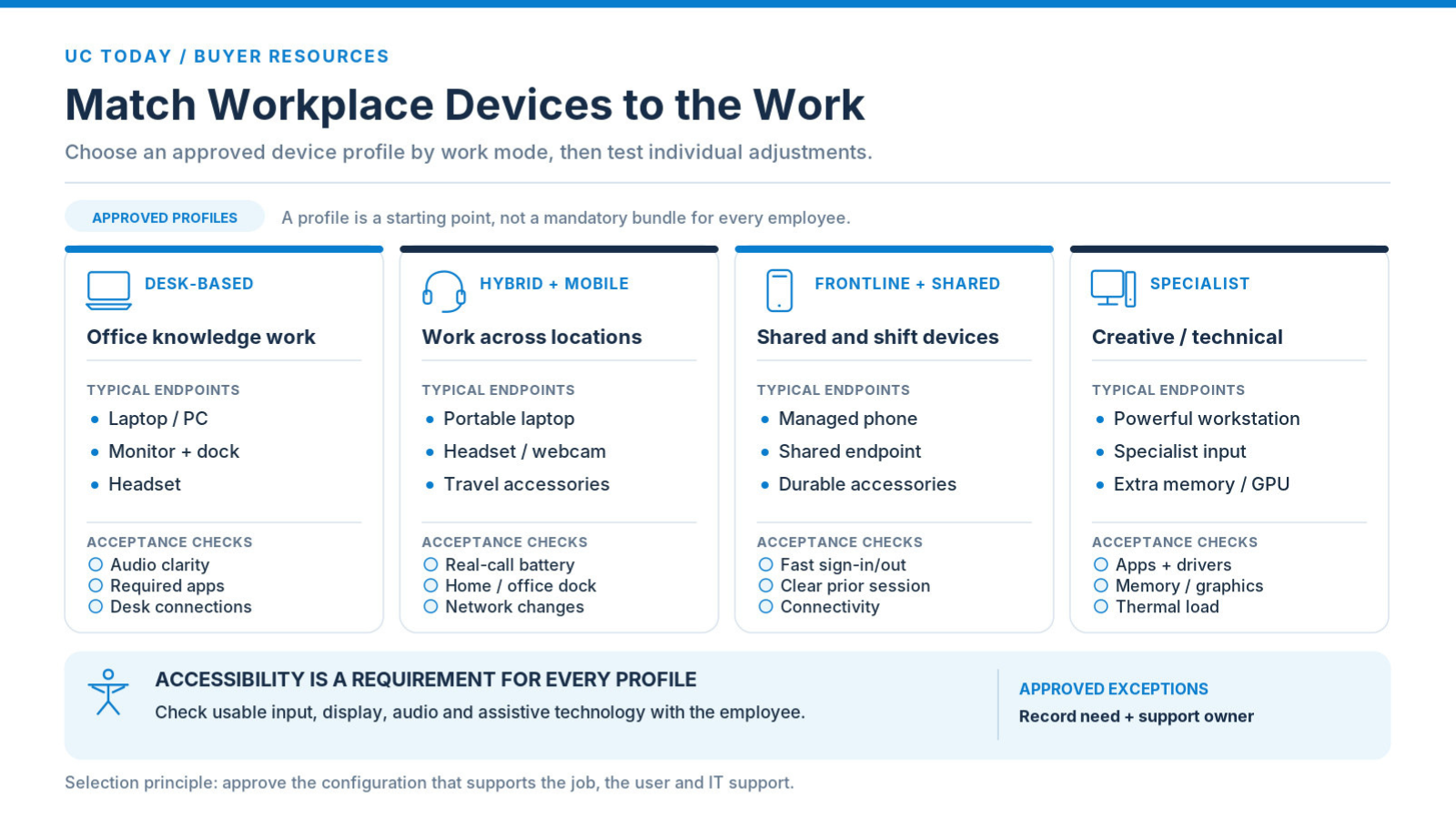
For this particular guide, we’re focusing on the essentials: laptops or PCs, webcams, headsets, docks, and phones. Eventually, you might decide you want to experiment with full room kits or immersive devices, but we have other guides to help you with that.
Before you rush in and make a decision based on a great deal from a vendor, or start gathering endless requests from employees (each with their own favorite brands), take the time to understand the work your in-office and hybrid team members actually do.
|
Work mode
|
Likely personal endpoints
|
Essential checks
|
|
Office knowledge worker
|
Laptop/PC, monitor, headset, dock
|
Audio clarity, desk compatibility, required apps
|
|
Hybrid or mobile employee
|
Portable laptop, headset/webcam, travel peripherals
|
Battery under real calls, home/office docking, connectivity
|
|
Frontline or shared-use worker
|
Managed phone or shared/rugged endpoint
|
Fast sign-in/out, durable hardware, shared identity, connectivity
|
|
Creative or technical specialist
|
Higher-performance PC/workstation
|
Software and driver support, graphics, memory, thermal limits
|
|
Employee requiring adjustments
|
Appropriate displays, input or audio devices
|
Assistive technology, individual usability, accessible support
|
Compare Capabilities Before Specifications
Once you’ve got a good idea of your team and the kind of work that might affect the devices they need, build a profile for each of your company’s common “work modes”. The profiles don’t need a list of specific devices; just a general idea of the essential software each employee will be using, and the minimum specifications required to support their work.
For each type of device your employees might need, think about the essentials; for laptops, you might need to think about battery life (particularly during video calls), ports, memory, and operating systems. For docks, you’ll think about power delivery, monitor resolutions, and connections. Headsets and cameras will have their own must-haves for things like picture and audio quality.
Make Accessibility Part of the Standard
There are plenty of reasons why a one-size-fits-all approach to buying devices can be pretty problematic; one of the main ones is that different people have different needs. If you’ve hired employees with certain impairments, you’ll need to think about what they need to perform as well as their colleagues.
A standard bundle that forces staff into an inaccessible setup will automatically fail the most important test for your teams.
Should You Standardize Workplace Devices or Give Employees More Choice?
We’ve briefly mentioned this already, but there are limits to how much a company can realistically standardize. There’s nothing wrong with IT teams wanting fewer configurations to support, and hopefully less confusion when something breaks, but your employees will also want a say in what they’re working with. As Jabra’s Peter Hartmann told us:
“We see a key trend, even with large organizations, that individuals have a very strong say in what products they choose.”
For most companies, the answer will usually be to standardize certain things and leave others open based on what team members actually need.
|
Model
|
Good fit
|
Watch out for
|
|
Standard catalog
|
Repeatable roles, centralized support, bulk purchasing
|
Specialist or accessibility needs excluded; model availability
|
|
Employee allowance
|
Roles needing unusual hardware and clear ownership terms
|
Support boundaries, reimbursement, security, inconsistent peripherals
|
|
Managed mixed estate
|
Large organizations with varied roles and regulated exceptions
|
Extra testing, approval workload, and tracking of nonstandard devices
|
If you’re not sure what’s going to work, start with a small set of approved profiles with a few standardized elements, and make sure you have an exception policy ready that your people can actually understand.
Compare Buying Models Carefully
Remember, you’ve got options for how you obtain these devices too; some companies buy them outright, others lease, and some take advantage of device-as-a-service (DaaS) options. Whichever route you take, make sure you know what’s really included. For instance, DaaS might combine device access with support for setup, regional dispatch, and repair SLAs.
In some cases, you might even decide to let employees bring their own devices into the office, or use the options they prefer when they’re working remotely. Just keep in mind that BYOD policies need careful planning. Be very specific about management rights, employee privacy, permitted applications, and who pays for a failure. A reimbursement budget doesn’t solve any of those questions.
Make Exceptions Easy to Justify
When it comes to exceptions, be precise about what’s justifiable, and what isn’t. Approving every request might make your employees happy, but it’ll quickly create more complexity for your wider team. If a design team needs Macs to access a critical application, even though most of your other employees use Windows, record why the exception’s necessary, and make sure you know which team’s going to be responsible for support.
Also, before you agree to a supplier deal, make sure you find out which configurations are available in each country, how long replacements take, and what you can do if a specific model suddenly gets discontinued.
How Should You Test Workplace Devices Before Buying Them?
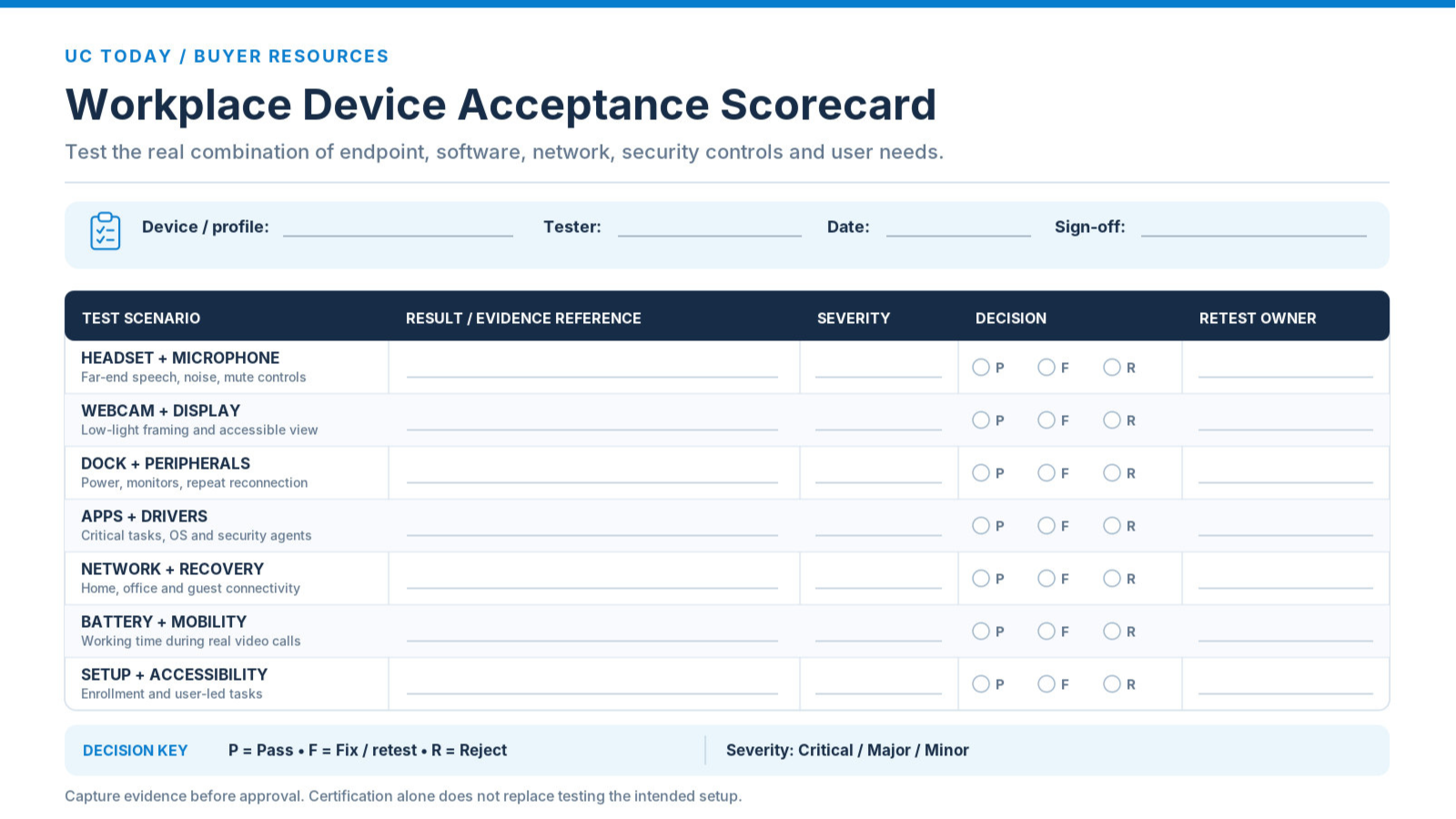
We say this regularly, but vendor demos are designed to look fantastic; nobody’s going to show you something going wrong when they want to convince you to buy something.
So your workplace hardware strategy needs to include some deliberate testing, based on what work actually looks like for each employee. You’ll probably need to get both in-office and remote employees involved in a pilot, especially since broadband connections and other factors can vary drastically from one location to the next.
Ideally, you’ll run the test with one or two people from each “device profile” you’ve established, making sure they follow the same security policies and operate the same applications they’d typically use.
|
Scenario
|
Evidence to capture
|
|
Microphone and headset
|
Remote listener’s speech rating, noise sample, mute/call controls, extended comfort
|
|
Webcam and display
|
Dim-room image, usable framing, screen position, accessibility
|
|
Docking and peripherals
|
Both displays and power working across repeated undock/reconnect cycles
|
|
Business apps and drivers
|
Critical workflows and security agents running on the actual OS/CPU architecture
|
|
Home, office and guest networks
|
Join success, interruptions, reconnection, diagnostic call-quality data
|
|
Battery and mobility
|
Observed working time during calls, multitasking and travel
|
|
Day-one setup and accessibility
|
Time to enroll; user-led completion of essential tasks and support path
|
With hybrid teams, make sure you’re testing the audio from the listener’s side, too. Workplace audio and meeting equity go hand-in-hand, and just because noise cancellation might make the experience great for the wearer doesn’t mean it’ll prevent microphones from transmitting what’s going on around them.
Check What Certification Actually Covers
It makes sense to narrow some of your options down based on the certifications they have for the platforms and tools you’re using. If your staff members tend to communicate and collaborate mainly through Microsoft Teams, then obviously, you’re probably going to be drawn to Microsoft-certified hardware; but that certification doesn’t remove the need for testing.
Microsoft has even said that certain things, like native Bluetooth performance, depend partially on the host PC’s radio, and there are certain certified peripheral controls that won’t sync automatically with Teams when users are working with third-party apps.
The same thing applies with USB-C docks, too. Matching connectors don’t always tell you whether the cable and laptop support the kind of power and display modes people need.
Give the Pilot a Genuine Pass, Fix or Reject Outcome
Pilots aren’t as valuable if you’re only using them to tick a box to give you a clear result that ‘things largely work’. Identify any real showstoppers, and record a genuine Pass/fail from every test, as well as who will be responsible for any genuine issues that need to be fixed.
Even if you’re giving some of your people the option to use their own personal devices, that doesn’t necessarily mean they can handle fixes alone if something goes wrong.
|
Mandatory test
|
Record before approval
|
Decision
|
|
Core work and compatibility
|
Pass threshold, tester, measured result, unresolved errors
|
Pass / Fix / Reject
|
|
Security and support
|
Enrollment, required agents, remote updates, named owner
|
Pass / Fix / Reject
|
|
Accessibility and usability
|
User-led task outcome and requested adjustments
|
Pass / Fix / Reject
|
How Do You Evaluate Device Security, Lifecycle Support, and AI PC Claims?
Be wary of suppliers who spend hours showing you how amazing a camera’s picture quality is, or how useful an AI-powered laptop might be, but refuse to answer questions about how you’re going to govern and manage whatever you’re buying clearly.
First, make sure your IT team can manage, update, and monitor devices. If you need remote enrollment options, ask your team to demonstrate how they handle that, how they make sure you stay compliant, report on inventory, check encryption, and manage OS, Driver/Firmware updates, and patching.
Find out how security alerts are going to be shared, and ask what happens if a device suddenly stops connecting to your management tools. Also, for shared devices, test what happens when someone logs off. Is there still access to that one user’s data?
Testing how easy management is really going to be in advance can save you from a lot of headaches in the long term. As Alexander Schmidt, IT manager at Sympany, pointed out when talking about the company’s deployment of 1,000 EPOS headsets:
“We have immensely benefited from the central administration, saving a lot of time and effort.”
Are AI PCs Actually Worth Buying?
AI-powered laptops and PCs can be brilliant for some teams, but they’re not always necessary for every employee. Ole Bülow, Director of Business Development at hardware and lifecycle provider Egiss, told us:
“There is what I call the marketing view from Microsoft, which is the label that says this is an AI-ready laptop. And then there’s the new breed of laptops, which are high compute, with a lot of memory and fast disks and a lot of disk space, which allows you to run more AI locally.”
An AI label on a device doesn’t necessarily mean that device will run a browser-based assistant faster, or that a data-sensitive local model will fit perfectly into the memory available.
There’s definitely a case for local AI in certain settings; Eric Sedore, the CTO of Syracuse University, told us he believes:
“The future of AI is not everything going to the cloud; it’s AI at the edge.”
If you’re thinking of buying AI-first solutions, test them just like you would any other device. Find out which tasks run locally, whether the software uses your NPU or another processor, what stays in the cloud, and whether the PC you already have can do anything similar.
When Should You Refresh Enterprise Devices?
The slightly good news for leaders worried about device budgets is that Gartner suggested PC lifetimes would probably increase by 15% by the end of 2026. That’s partially because component costs are increasing, so teams are holding onto what they have for longer. Still, most vendors are working on making their systems more durable, too.
You probably don’t need to refresh your entire ecosystem every time a company introduces a new AI feature or increases memory by a tiny margin. A better option is to keep a close eye on operating system support deadlines, application compatibility, IT service tickets, and user complaints.
Could be worth keeping an eye on overall performance metrics, too. Even a couple of slightly problematic devices can end up seriously slowing down your team.
What Do Workplace Devices Really Cost Across Their Lifecycle?
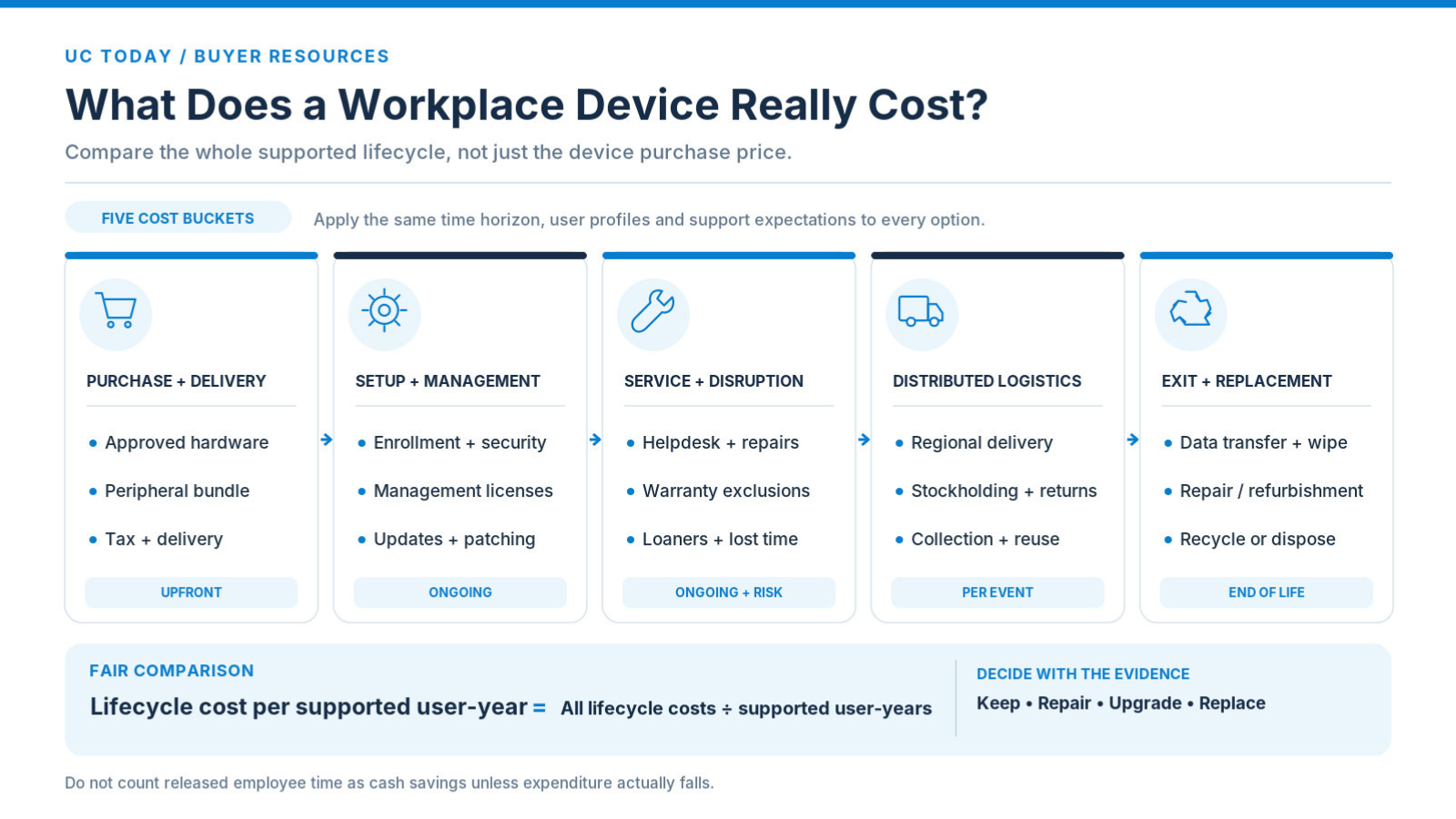
You’d think a workplace device TCO calculation would be pretty simple, since vendors are usually pretty transparent about how much you’re going to pay for a fleet of laptops or headsets. Most of them even offer discounts on bulk purchases, or extra benefits if you’re taking a “managed support” route.
Trouble is, there are plenty of hidden device lifecycle costs that can sneak in and mess up your budget. We’re not just talking about the little things here, like accessories you forget to plan for; we’re talking about the cost of waiting for replacements or maintenance help, too.
What Should You Include in Workplace Device TCO?
Calculate the total cost of ownership for each option. Your finance team will likely want this broken down by cost per user year supported, and I’d imagine they’ll want to know where you got your assumptions used about service and downtime.
|
Cost bucket
|
Include in the comparison
|
|
Purchase and delivery
|
Hardware, approved peripherals, tax/transport where applicable
|
|
Setup and management
|
Image/enrollment, management licenses, security, OS and firmware maintenance
|
|
Service and disruption
|
Warranty exclusions, helpdesk time, break/fix, loaners, verified lost time
|
|
Distributed logistics
|
Regional delivery, stockholding, returns, collection and redeployment
|
|
Exit and replacement
|
Data transfer, secure wipe, repair/refurbishment, recycling or disposal
|
As an example, if 100 members of staff in your company are losing around 10 minutes per week due to recurring issues with their device, this means over 16 hours of impacted work per week. You might not get those full 16 hours back by purchasing new laptops, but at least you’ll know what to measure when you start investing in tech.
Should You Keep, Repair, Upgrade or Replace?
If something does keep going wrong, the immediate response might not be to throw problematic devices in the trash and start again. Take a moment to figure out how much it’s really going to cost you to pay for another year of support and repairs, and compare that to how much you’ll spend for a replacement or upgrade. Remember to think about migration and service costs too.
Include the potential cost for a sudden failure, and any mandatory software deadlines you need to think about. Sometimes, a battery replacement could extend a device’s useful lifespan, but that doesn’t help much if the same device won’t continue to work with the device management or security software you use.
What Happens When a Device Leaves the Company?
Proper device lifecycle management needs to include a strategy for retrieval, sanitizing data, and deciding whether you’re going to reuse or dispose of the endpoint. Fail to think of those things, and you end up with a brand-new set of security risks to worry about.
If you need a good starting point, NIST has a guide in their September 2025 SP 800-88 Revision 2 document which outlines how organizations can manage appropriate sanitization at a program level. If you’re purchasing relevant mobile devices in the EU, then there are ecodesign regulations to take into consideration, too.
Before signing anything, ask who will collect the device, what happens if the reset doesn’t go through, and what evidence you will have that the device has been managed securely.
How Do You Pilot, Standardize, and Refresh Devices Without Disrupting Employees?
A big device refresh is probably going to cause a little bit of disruption, but you can stop the process from turning into pure chaos. Recruit employees from all the “work mode” profiles you defined before (including remote and frontline users), set everything up, including specialist applications and accessibility settings, then run a test:
|
Evidence to retain
|
What it establishes
|
|
Approved role profiles and exceptions
|
Who the device is for and why variants are needed
|
|
Pilot scorecard with named testers
|
Which essential tasks passed and what remains unresolved
|
|
Security and management verification
|
Whether IT can actually support and secure the fleet
|
|
TCO, warranty and delivery terms
|
Whether the deal still makes sense beyond purchase price
|
|
Go/no-go sign-off and rollback owner
|
Who accepts remaining risk and who restores a previous setup
|
Fix and retest any problems you discover, and if the device passes the tests, start rolling it out to users in phases, making sure you have spare equipment and a helpdesk route prepared.
Review the Device Standard After Launch
After your devices are officially “deployed”, speak to your employees, take a look at recurring IT tickets, and gather experience data for the first ninety days. Compare everything you find against the pilot baseline, by profile and location.
Also, always make it easy for your employees to submit a concern. Sometimes your endpoint management tools will catch a problem before it multiplies; other times, the best thing you can do is listen to what your staff members are actually saying.
Buy What the Evidence Supports
Employees need reliable devices just as much as they need cutting-edge software, but that doesn’t necessarily mean you should be updating your entire hardware stack every time a vendor promises something new and exciting.
Find out what your team members really need based on the work they actually do, run tests before you commit to anything, and keep a close eye on how the experience changes over time. Also, remember that buying top-of-the-line products now doesn’t necessarily guarantee you won’t need to update or replace something a few months later.
FAQs
What devices do employees need for hybrid work?
Laptops, headsets, webcam and docking solutions will cover most knowledge worker roles. Ensure you consider software requirements and ensure there are suitable and accessible peripherals available. Frontline and specialist staff may have alternative requirements.
Should businesses standardize workplace devices or allow employee choice?
Have a small approved list of devices with clear exceptions. Giving staff complete choice can cause issues with ownership, security and troubleshooting. By having a managed device mix you can ensure you get what you really need to cater for specialists and those who require accessibility.
Are AI PCs worth buying for business use?
It depends on whether you want to invest in a specific task where you have a tangible benefit from a local solution. Ensure you have considered your workload and software requirements. You don’t want to pay more for an NPU that no one is using within their applications.
How often should enterprise laptops be replaced?
There is no magic number for replacing devices across an entire fleet. It depends on your support dates, cost of repairs, failures and what the staff are doing. If the device is still supported and passes your acceptance criteria then there is no need to replace. If it’s out of support and dealing with sensitive data, act quickly.
What is workplace device lifecycle management?
Device Lifecycle Management is the process of purchasing, setting up, updating with security, repairing, recovering and retiring devices. This will ensure your devices remain functional and consider the costs and data risk involved after the initial invoice.