What Is Zoom's New Digital Whiteboard?
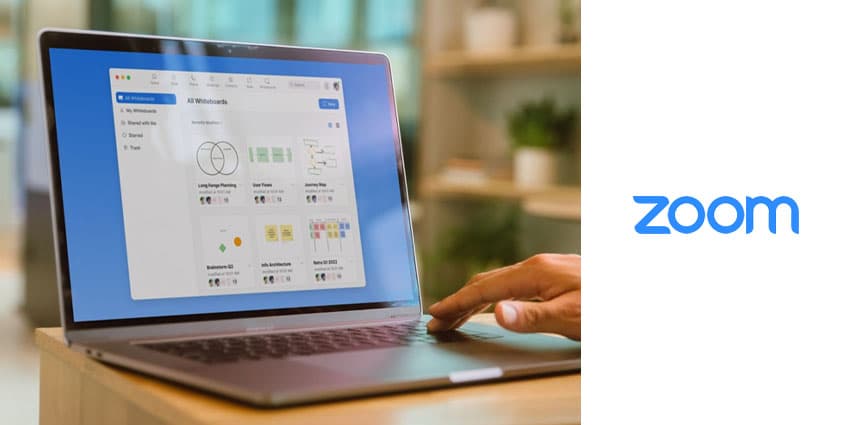
The video conferencing company introduced the Zoom Whiteboard on April 19, 2022, a cross-platform, persistent, and online visual collaboration solution integrated directly into the Zoom desktop client, Zoom Meetings, and Zoom Rooms for Touch devices. It has recently improved the product to include new devices and apps.
How to Use the Zoom Whiteboard
Zoom Whiteboard is an excellent tool for online collaboration. Users can share their screen with others and draw or write on the shared screen. This detailed breakdown will demonstrate how to use the Zoom Whiteboard:
How to activate Zoom's Whiteboard
The first step is to turn on the Whiteboard feature in the Zoom app or on the Zoom web interface. Sign in to the Zoom account and have admin privileges to change the account settings if using a company account. Once admin privileges are enabled, click Account Management and Account Settings in the navigation menu. Select the Meeting option. Users can find the Whiteboard toggle under the In Meeting option (Basic). The admin will be able to turn it on and off from here.
Turn on the Whiteboard, and the confirmation window will display. To confirm the modification, click Enable. To make this setting required for all account users, click the lock icon and select Lock.
Sharing Zoom Whiteboard viewing access
Sharing Zoom Whiteboard viewing access can aid teamwork.
For devices running Windows, macOS, and Linux, select Whiteboard from the Share Screen menu in the meeting toolbar of the Zoom app and Select "Share." The annotation tools should now be visible. Go to the Meeting Controls menu and select Whiteboard to show or conceal the annotation tools if they don't. Users can now create new pages or switch between whiteboards by using the page controls in the bottom right-hand corner. To stop sharing the Whiteboard, select Stop Sharing.
For Android and iOS mobile devices, select Share in the meeting controls toolbar. After that, choose Share Whiteboard. The annotation tools are activated by tapping on the pen symbol. Users can then select the drawing tools they require. A highlighter, pen, shapes, and other devices are available. Click the pen icon to hide the annotation toolbar and stop sharing. After that, click Stop Sharing.
Asynchronous whiteboarding with Zoom
In addition to sharing whiteboards during meeting sessions, Zoom's latest feature allows users to create, work on, and share whiteboards for asynchronous communication, which remain persistent beyond a meeting. From the Zoom web portal, click on Whiteboards on top, and click on the new button. Users can also view their current whiteboard, boards shared with them, boards marked as favorites, and boards moved to the trash from this section. Sharing a board with a co-owner, editor, commenter, or viewer is also possible.
The Zoom digital whiteboard is an excellent way to keep the team organized during online meetings and solo and asynchronous work. Users can easily share ideas and visually collaborate with their colleagues, benefiting from Zoom whiteboard's easy setup process.
Key Features of Zoom Whiteboard for Users
The whiteboard makes online meetings more interactive and productive by leveraging the following features:
● Multiple participant collaboration - This feature enables team members to work on the same canvas in real-time or asynchronously, regardless of their geographical location. The whiteboard allows several users to collaborate, making it a fantastic tool for teamwork.
● Seamless expandability - Users can share information and give large groups and organizations quick access to collaboration projects through simple sharing choices across platforms.