
Google Meet Companion Mode has emerged as a popular feature of the collaboration platform in educational and enterprise collaboration settings.
Initially only available for users of Google’s web-based collaboration solution, Companion Mode is now available on desktop and mobile devices. Google says this update will ensure every employee has an innovative, convenient way to engage in meetings regardless of their chosen device.
Designed for the era of hybrid work, Companion Mode allows multiple users to “check-in” to a meeting room, share reactions, exchange chat messages, and more, even when they’re not a complete “participant” in a meeting.
Here’s your guide to Google’s updated Companion Mode feature and how to use it to boost meeting equity and enhance hybrid work.
What is Companion Mode in Google Meet?
Google Meet Companion Mode allows users to join Google Meet video calls on a second screen, where they can access features for chat, screen sharing, and more. It addresses one of the most common issues plaguing hybrid conferences and meetings.
Before companion mode, if multiple people joined a conference from a single meeting room, they couldn’t participate in the conversation entirely. They could speak and show up in the video stream, but they couldn’t access polls, meeting chats, hand-raising tools, and more.
With Companion Mode, individual participants can join a meeting and access various collaborative features without disrupting the conversation.
Unlike “participant mode,” Companion Mode automatically turns off audio input to eliminate feedback when multiple users are collaborating in the same space. According to Google, this feature is ideal for participants in a hybrid meeting who want to interact with colleagues through chat, screen sharing, and emoji reactions so they feel more included in the conversation.
Companion Mode is also great for people who want to use multiple devices for different aspects of a meeting. For instance, you might use your smartphone to join a meeting as a participant for access to great video and audio clarity, and your laptop to take notes and chat with employees in real time.
The Features of Google Meet Companion Mode
Companion mode gives users a unique way to join meetings and get involved in a conversation, even when sharing a room with other employees. It differs from “participant mode,” as users don’t have microphone and audio controls, but they can still:
- Check in to a meeting to show you’re present and active in a conversation.
- Share emoji reactions without interrupting a host or speaker.
- Turn on captions to view subtitles and take notes during a meeting.
- Exchange chat messages with other people in the meeting.
- View and zoom in on content presented during the meeting.
- Use “hand raising” to indicate you want to speak.
- Share your screen or access a virtual whiteboard.
Basically, the feature gives you all the tools you need to engage in a meeting without audio. You can also seamlessly switch to “participant” mode on your device if you need to speak to other meeting room participants using your preferred microphone.
How to Use Google Meet Companion Mode
As mentioned above, Companion Mode was available only to web-based users. In February 2024, however, Google updated the feature to include support for Apple and Android devices.
Here’s how you can use the feature on any device.
Using Companion Mode on Google Meet for the Web
If you’re using a laptop or computer to access Google Meet’s web application, there are two ways to access the feature. First, log into the Companion Mode website from your chosen device. You’ll need to enter the meeting room code to connect, or you can select a scheduled meeting from your integrated Google Calendar.
The second option is to connect your laptop to Google Meet from a meeting invite. When you receive an invitation, click the “Join” option. Under “Other Joining Options”, select “Use Companion Mode”.
When you join the meeting, you should automatically be in “Companion Mode,” and a pop-up will appear asking if you want to “check in?” to the meeting. You can also “check in” after the meeting starts, by clicking on your meeting name and clicking “Check-in”.
Quick tips:
- If you want to use your microphone, click the “leave” button and rejoin from the meeting link in “participant” mode.
- Click “check into a different room” to check into an alternative conference room.
- Click “check out” to remove your name from the list of Companion Mode participants.
Using Companion Mode on a Mobile Device
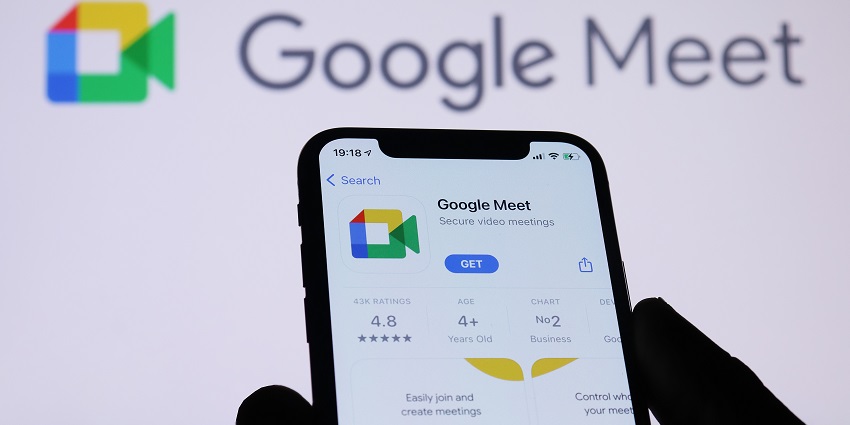
The first thing you’ll need to join a meeting in Companion Mode on a mobile device is the Google Meet app, available from both the Apple iOS and Google Play store.
Once you’ve installed the app and logged in with your credentials, open the app and tap a video from your list of upcoming meetings (integrated with Google Calendar). Alternatively, tap “Join with Code” to join a meeting with a code or nickname.
Under the “Self-View” section, tap “Use Companion Mode.” You can then check into the meeting using the pop-up that appears or the dialog box.
Just like on a laptop or computer, you’ll be able to leave the meeting and rejoin as a participant, check into another room, and check out of your current meeting using the Meet app.
Using Google Meet Companion Mode Features
Most of the key features you can access in Google Meet Companion Mode will work exactly as they do on the platform if you’re in “Participant mode.” For instance, you can click on an emoji to share a reaction during a meeting and chat just like you would in any meeting.
Here’s a quick guide to leveraging the other features of Companion Mode.
How to Screen Share in Companion Mode
If you want to share a screen during a meeting, you can do so by joining the meeting in Companion Mode, following the steps above, and clicking “Present now” at the bottom of your screen. You’ll then be able to select the content you want to present and choose how much of a screen to share on a laptop.
Notably, you can only share system audio if you leave the meeting and rejoin as a participant. This helps prevent feedback from multiple microphones and speakers in one room.
Share Your Camera Feed with Self-View
By default, Google Meet Companion Mode switches your camera off. However, you can stream your video in the “Self-View” section of the app. This will allow you to share your video tile with others on the call. Simply go to the bottom of the screen and click “Turn on Camera.”
You can click the same button again to turn off self-view. Like other participants on a Google Meet call, you’ll also be able to change your background or blur your surroundings by clicking “More Options” and then “Apply Visual Effects.”
Raising Your Hand in Companion Mode
Hand-raising is a great way to contribute to a hybrid meeting without disrupting other attendees. Once you’ve logged into a meeting in Companion Mode, all you need to do is click on the “raise hand” button to indicate that you want to speak.
Your meeting host can then ask you to rejoin the meeting as a participant or hand the microphone to you in an office-based meeting so you can take over.
Turning on Closed Captions
The closed captions feature in Google Meet is excellent if you’re having trouble following along with what others say during a discussion. The solution uses natural language processing to rapidly generate a real-time log of everything attendees say.
To turn on closed captions, click the “Turn on Captions” button in your meeting settings when you join a conversation in Companion Mode.
Using Google Meet Companion Mode
Companion Mode might not be a new feature to companies that have been using Google Meet on the web for hybrid meetings for a few years. However, Google has extended this feature to mobile device users; it’s likely to become a more common component of flexible meetings.
Companion Mode gives users a quick and lightweight way to participate in meetings without causing disruptions or distractions. You don’t need a particular Google Meet plan to access the feature, and it doesn’t have to be enabled by an administrator. So, if you’re looking for a way to interact more effectively in future meetings, give Companion Mode a try.
FAQs
Can I join Google Meet on two devices with the same account?
Yes, with Companion Mode, users can join a Google Meet conversation on two devices simultaneously. You might use one device as a participant if it has better audio capabilities and access Companion Mode on another, so you can easily chat with team members during a presentation.
Why is check-in not available in Google Meet Companion Mode?
If you don’t see a prompt to “check-in” to a room when using Companion Mode, this could be because your meeting host has turned this option off. In some cases, check-in may also be unavailable due to issues with your account or hardware.
Do Companion Mode participants count towards the participant limit?
Yes, people connecting to a meeting in Companion Mode will be counted towards the participant limit. Users can check the current number of participants in any meeting using the “people” icon on the bottom right side of a meeting screen.
Is Companion Mode available for mobile devices?
Yes, as of 2024, you can join a Google Meet conversation in Companion Mode on Android and Apple mobile devices using the Google Meet app. However, you may have limited screen-sharing capabilities when using a smartphone.
Who can access Companion Mode on Google Meet?
All Google Workspace customers and users with Individual and Personal Google accounts can use Companion Mode. The feature doesn’t have to be enabled by an administrator, but you must ensure your Meet app is up-to-date on a mobile device.